The scourge of LLMs have been shoved down our throats by our techbro overlords because it allows them to demonstrate that more and more people are using the things they have spent so much money investing in. Never mind that we aren't interested. Never mind that the thing they have labeled as "AI" isn't anything like what they are actually selling it as. The more people "using" the technology, the easier it is to sell the technology, even if in this case the word "using" is doing a lot of heavy lifting for "we bundled it with everything so it looks like more people are using it."
"Agents" and "assistants" are the new buzzwords, but it's all the same thing: A complex algorithm that uses predictive text to piece the most likely, most used words together as a response to a prompt. The reason we haven't had these things until now is that processors and storage medium weren't powerful enough and cheap enough to brute force a response built from entire libraries of stolen data. This isn't a machine that thinks, its a decent simulation of what that might look like, using the power of ultra-fast processors generating "most likely" predictive responses. It's a scam. It's snake oil. And because its so ubiquitous, it's actually likely to get in the way of real AI development. It's the worst, most inefficient way of simulating a real AI.
There are two paths: one path is the slow, laborious process of teaching a burgening intelligence how to think, how to
process, and how to reason. We are a hundred years from that. The other path is to use predictive algorithms and reams of stolen data to inefficiently brute force a response that "seems like something an AI might say," and you can guess which path the techbros selected. The path that gives them results, sort of, right now, allowing them to ride the bubble until it bursts, hopefully long after they've retired to a tropical paradise somewhere, leaving us all relying on LLMs that frequently generate plausible sounding responses that are 100% wrong.
The important thing is that this doesn't have to be something we just have to deal with from now on. Remember when everyone was very excited about NFT and blockchain technology for no reason? The difference is that every techbro and compute manufacturer has invested heavily in AI, so waiting out this particular bubble will be a lot harder, because they're going to be pushing it into your life to justify their investment. We're currently in a circular shitshow where AI hardware manufacturers, developers, and datacenters are just cycling the same money around and hoping nobody notices, and if they stop, the whole thing implodes, so it behooves them to never stop.
While we wait, you can start blocking, uninstalling, and disabling the "AI" that comes pre-installed with your phone, tablet, laptop, and various applications you might use.
This is a complicated subject, and it covers more than just AI. How do you want the internet to look? To operate? There are two distinct opposing thoughts here. The first is that the internet should be tightly controlled, to protect you and to ensure that you are seeing and experiencing exactly what the company that makes your computer or device wants you to see. This is part of the "walled garden" paradigm that is largely attributed to apple. The other path is for you to control how the internet looks when it's delivered to your computer or device. You determine how the experience goes. This is less safe for you, as a user, because you can't depend on the walls of the "garden" to protect you. You'll have to learn how to do that yourself. But it does allow you freedom that the users in the walled garden will not be able to enjoy.
Here are the steps. We'll cover more detail on each section below.
Step One: Stop Using Google Search. I know, that's very difficult for a lot of people. But the reality is that it's easier to use another search engine altogether than it is to repair all the "AI"-based damage that google has inflicted on its search engine. You can do it, with enough extensions, but why bother?
Step Two: Stop Using Chrome. You will need to start using a different browser, because google is slowly (and sometimes not-so-slowly) killing the ability of its users to modify the way chrome works. They do this in the name of security, but the reality is, google makes money selling ads and your data, and extensions that keep them from doing those two things cannot be allowed to exist on their browser. So the second thing you need to do to un-AI your internet is to un-google your browser, just like you un-googled your search engine. This will allow us a lot more control over various aspects of your internet use.
Step Three: Extensions. Specifically, we'll be installing either uBlock Origin
Step Four: Block Lists. These are lists people have compiled of known "AI" websites and youtube channels and other things. Thanks to these lists being public, we don't have to block each of these sites one-by-one, we can just install an already made list.
Google has become synonymous with "search," but it didn't used to be that way. There were once hundreds of different search engines, and people used the ones that they liked more than the others, for various reasons like the UI or the types of results, or because of where and how it searched. Some of those engines are still around, but they've been bought and sold and absorbed and split off and redesigned so many times that it's hard to tell where they are pulling their results from at this point.
However, there are modern search engines that are not google, and which I can certainly recommend. Indeed, you should switch to one of these immediately:
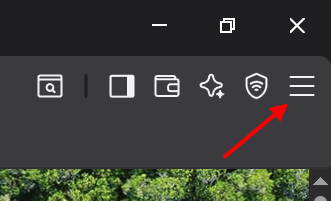
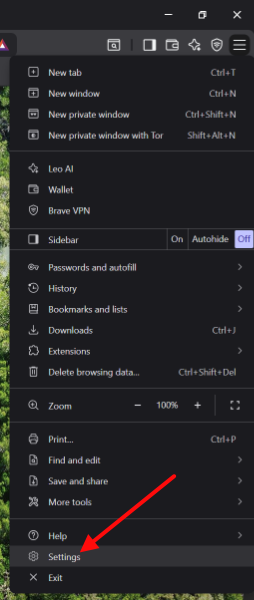
DuckDuckGo Search, with the "noai" subdomain, is the search engine I would recommend for most users. It's free, it comes with several settings you can adjust to your liking (click on the 3 bars in the upper right and select "settings" or just go to noai.duckduckgo.com/settings), and it's fairly good at returning relevant results. Using the "noai" affix in the address automatically disables all of DDG's "AI" features, but you can also turn them off in the settings. It also has a setting for "Hide AI Generated Images" that is... relatively good at doing what it says. It really tries hard, but there is so much "AI" "Artwork" flooding the internet, that you can expect some of it to slip through.
Kagi (Kah-gee) is the next search engine I recommend, and it's probably the best non-google search available, at the moment, in terms of results and reach. Kagi is one of the only modern search engines that maintains its own index (so it doesn't rely on google or bing or yahoo for its results) and prioritizes non-commercial websites (though commercial websites do appear in the results as well) which leads to a more "small web" feel. The phrase "If you don't know what the product is, you are the product" (alternatively: "If you're not paying for the product, you are the product") is at the heart of Kagi, and they reiterate over and over again that there are no ads and they are not collecting or selling your information. This is great, but it also means you have to pay for a subscription to Kagi in order to use it. Kagi is not free. The cost is tiered, with $10/month being the cheapest plan with unlimited searches.
Brave Search is a search engine from Brave Software, Inc. the company that makes the Brave browser (More on the browser later). Like Kagi, brave maintains its own index, though it uses google as a fallback when the index fails to return results. Unlike Kagi, brave search is free. This is where you wonder if you are the product, and indeed,
Qwant is a french search engine now used as the default by the UK parliament, as of 06/04/26, as the UK and greater Europe increasingly wean themselves off of google search. Qwant has its own indexing system like Kagi and Brave, which is the European Search Perspective or EUSP, a joint index created by Qwant, in France, and Ecosia, in Germany. Qwant is focused on privacy, does not track users, resell personal data, or bias the display of search results, according to their wikipedia entry.
Ecosia is a German search engine thats main hook is being an eco-friendly search engine. It's powered by renewable energy sources and uses some portion of its profits (I am not sure what percentage exactly, but it seems to be about 1/4 of its total income?) on planting trees along with some other eco-friendly programs.
Some of the old engines still exist, sort of:
Dogpile.com / Metacrawler.com / Webcrawler.com / startpage.com are all owned and operated by System1, an "internet advertising company." Upsides? None of them are google, and none of them have AI features (though startpage's settings includes links to vanish.ai, a private AI model). Downsides? It's an internet advertising company. All of these are "meta" searches, in that they use the indexes of multiple search engines, including google and bing. I think I would use DDG or Brave if you need a free search engine. Still, these aren't google, and metacrawlers return the top results from multiple engines at once, so if you don't want to use DDG, Kagi, or Brave, you could do worse. Probably.
In this section you'll be dropping chrome like the absolute shitshow that it's become, and picking up a different browser. If you've already been using chrome for a while, this might come with some small learning curve, but probably not. Nearly every modern browser will happily import your bookmarks and saved passwords from any other browser, and it will probably ask you if you want to do that during the install. You can create a mozilla account and sync your bookmarks and passwords between any browser that is based on firefox (which will be the first 5 browsers listed here) including mobile firefox and mobile waterfox.
Firefox (Windows/Mac/Linux/Android/iOS-sort of) is probably the easiest alternative to chrome. Whether or not it's the best alternative is up to a lot of subjective preferences. Firefox (and all of its forks) allows us to freely install
Floorp (Windows/Mac/Linux) is a fork of firefox that focuses on customizability. Back in the early days of firefox, you could change the layout of the UI pretty much at will in a lot of different configurations. Mozilla significantly reduced customizability (without modifying chrome.css) sometime in the early 2000s. Floorp brings all of that back, and adds some more, making it maybe one of the most customizable of the current browsers. If you want to be able to decide where your tabs appear and what they look like and all kinds of other things, without modifying the user file manually, then Floorp is the way to go. Floorp uses the same mozilla account as every other firefox based browser to sync tabs and passwords and whatnot. Sadly, floorp does not have a mobile version, but syncs just fine with firefox mobile and waterfox mobile. Floorp ships with the same AI features that standard Firefox ships with, and the same single switch to turn it all off in the settings.
Waterfox (Windows/Mac/Linux/Android) is a fork of firefox, and uses the open source Gecko engine from Mozilla. Waterfox has the same general features supported by firefox, but with a more chrome-like UI. If you liked chrome, then this might be the firefox fork for you. Waterfox allows you to use all the same extensions as firefox, and will sync with your mozilla account, if you want to sync passwords, bookmarks, and tabs, etc. While waterfox is available on Desktop and Android, it is not available on Apple devices. Waterfox does not include an "AI" agent by default.
Librewolf (Windows/Mac/Linux) is another fork of Firefox, but it's massively focused on privacy. If firefox is a fortress, Librewolf is a hardened, underground bunker. Librewolf is so focused on privacy and security that it might make browsing the web inconvenient, especially for novice users. It integrates with a Mozilla account for syncing, and allows the same extensions. While Librewolf is available for many desktop environments, it does not have a mobile version. Librewolf does not include an "AI" agent by default.
Zen Browser (Windows/Mac/Linux) is built on Gecko, so is a firefox fork, but its interface is completely different from the usual. Zen's layout is actually different from the majority of other browsers, and so you either like it or you don't. It's heavy on privacy, it doesn't collect any user data, and it can install the same extensions as firefox, so you can use it for our purposes here, like the rest of these browsers. Just be aware that it's different. Maybe better, maybe worse, depending on how you feel about side bars and tab layouts.
If you are on iOS (using an iphone or ipad) then thanks to apple's walled garden policies, things are a little more interesting. You have essentially three options: The Orion browser, the Brave browser, or the default Safari browser (way less effective).
Orion (Mac/iOS/iPadOS) is a browser made by Kagi, the same people behind the Kagi search engine (The browser is free, unlike the search engine). Orion supports some essential extensions out of the box, and may or may not support extensions from firefox, chrome, and apple, depending (apparently) on the extension. It's based on webkit, which is the engine that drives Safari, but its been heavily modified.
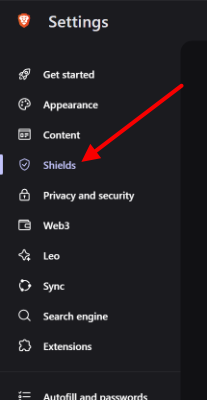
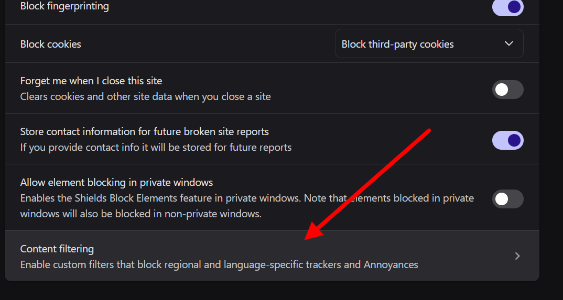
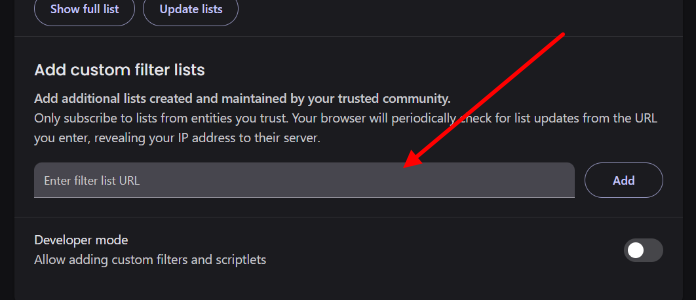
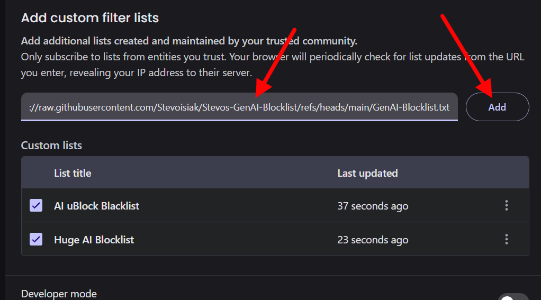
Brave (Windows/Mac/Linux/Android/iOS/iPadOS) is a popular browser with a built in adblocker that replicates a lot of the things we'll be using extensions to do on the other browsers.
You can also use Safari (which I won't bother linking, since it's already pre-installed on your i-device), but the process will be a little different than with these other (better) 3rd party browsers, and will be
I'm going to assume that you know how to install a browser on whatever device you are using. If not, then each of these browsers has a pretty self-explanatory "DOWNLOAD" button. You'll click that, save the file somewhere on your device, and then run the file. Or if you're on a mobile device, you can visit whichever app store your device uses, and search for the browser there. If a browser has a mobile version it will more than likely have a link to the app store on the website.
Though I don't know how you would do it, I am not responsible if you somehow blow up your device while attempting to install a browser.

Extensions are add-ons that change the way the net works with your browser. Extensions are client-side only, which means it changes the way the internet is displayed for you, on your machine. Extensions essentially sit between your browser and the internet, and adjust things on the fly as your browser loads a website. This is a very simplified explanation, but for our purposes you only need to know that extensions input the internet, modify it in various ways, and then output the result to your browser to be displayed for you. The best example of an extension is an ad blocker. The internet (full of ads) hits the ad blocker extension in your browser, and then those ads just don't get rendered by your browser. You can use extensions to completely change how web pages look (for you, on your browser), how they operate, and how the flow of information between you and the internet works. Extensions can be very simple single-purpose scripts, or very powerful suites that effect everything you do on the net.
For the purposes of Un-AIing your internet, we will focus on two extensions: uBlock Origin and uBlacklist.
Click the name of the extension to go to the installation site.
Ublock Origin is a very powerful tool that lets users completely override and subvert how websites are displayed on their machines, using custom filter lists. This means we can completely block all ads, everywhere, all at once. It also means that we can use it to block websites generated by or using "AI" from appearing in search results. This solution is not perfect. New "AI" websites and elements are showing up all the time, and uBlock Origin can only filter things that have been added to its block lists. Even so, installing the extension in your browser and adding some specific anti-"AI" custom filter lists will significantly cut down on the amount of "AI" garbage you have to slog through.
uBlacklist eliminates specific sites from appearing in search results. That's all it does. This replicates
Note that neither of these solutions will completely eliminate AI generated garbage. They block websites from appearing in search results, and we will install a list in uBlock Origin that will remove some "AI" elements from various websites, but neither solution will, for instance, keep you from having AI artwork posted by your relatives in your social media feeds. They block sites, not specific instances of AI garbage on an otherwise normal site.


br>


We've gone through all this effort to block AI websites in your browser, but if you use a company's app on your phone instead of your mobile browser, you bypass all that work. Companies like google do not want you to use your mobile browser to access their services, such as youtube or gmail, because it lets you block a lot of the things that make them money, such as ads, collecting and selling your data to 3rd parties, and forcing you to use their shit AI products that are now all integrated into these mobile apps. If you are connecting to a website, such as facebook, instagram, gmail, twitter (don't do this), goodreads, or reddit, among many others, then you should use your mobile browser to do that rather than install the specific app for each one. Using your browser means you can take advantage of ad blockers, anti-AI block lists (like what we've set up here) and extensions to modify or simplify websites, such as the Stylus extension. Using the official app means you are at the mercy of the company providing the service.
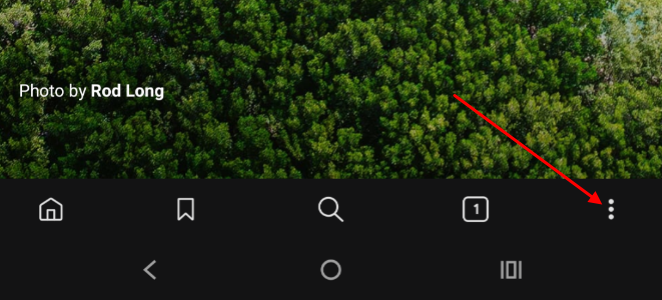
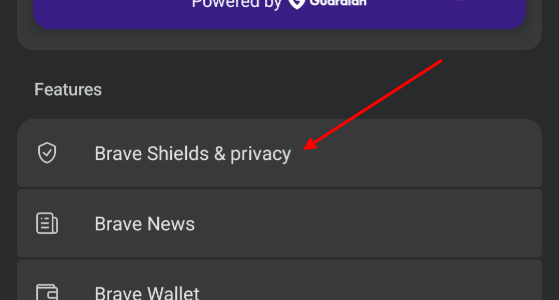
You can add shortcuts to websites to your phone's home screen by visiting the site, then entering the browser menu, and tapping "Add to Home Screen." I recommend doing this for every app you have installed that has a website alternative, and then uninstalling the app. If you want to keep the app for some reason (some sites let you do different things through the app) then in your browser settings will be a setting for "Open Links In Apps" where you can change that behavior so it either asks if you want to open the link in your browser or an app, or never open the link in an app. That setting is available in firefox and all of its forks. Brave does this by default, but the setting is in the "shields and privacy" settings and is called "Allow app links to open in apps outside of Brave" should you want to allow it for some reason.
developers are very aware of all of this and they would really prefer that you open links in apps rather than in your browser, so there are now things called "deep links" on android and "universal links" on iOS, that will always
Another problem is "embedded browsers" which are cut down versions of your installed browser that will sometimes get created when you add a shortcut to your home screen. This cut down version may or may not run the extensions you have installed. This is based on the website configuration, but you can get around this on android and force shortcuts to use your full browser rather than an "embedded" version of your browser, by doing the airplane mode trick listed below.
If you use youtube a lot, you may have noticed how its been inundated with "AI" generated garbage. We can install another extension into our browser called "Blocktube," which will allow us to not only block whole channels or videos, but also to import other people's already created lists of blocked channels. The reason this wasn't included in the steps above is that the blocktube extension has been a little flakey on the more recent versions of firefox (especially the mobile versions) so your mileage may vary.
Firefox Install (also Floorp, Waterfox, Librewolf, Zen, and Orion.)
Chrome Install (For Brave. Do not install or use chrome.)
*Note: While blocktube is not listed for Safari, there is a fork somebody made specifically for safari, but you will have to build it yourself from source, and that is beyond the scope of this document. The github link is here, if you want to do that, but
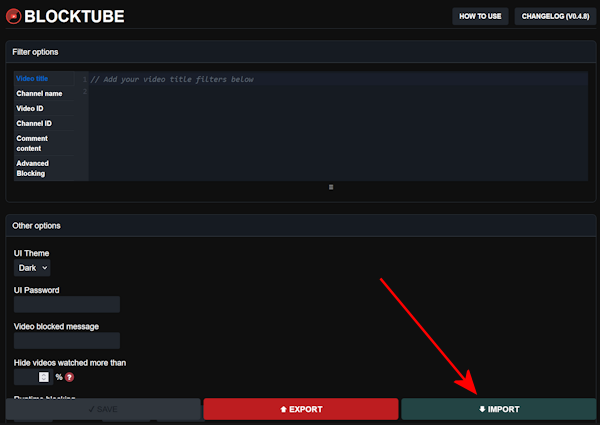
Once you have the blocktube extension installed, it's time to install somebody's premade list of AI garbage channels to block. We'll be importing a list from here.
Scroll down until you see this link, right-click on it, and save it to your device. It should be a file named similarly to "blocktube_backup--AI music blocklist--updated May 2026.json," but as the file name gets updated each time the list gets updated it may be slightly different.
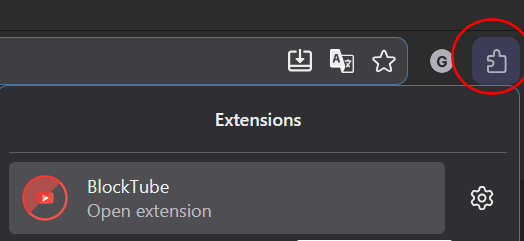
Now open up the blocktube extension settings. If it's on your toolbar in your browser, the icon will look like this: